Module 01 — CRM & Subscribers
Every subscriber, one complete record.
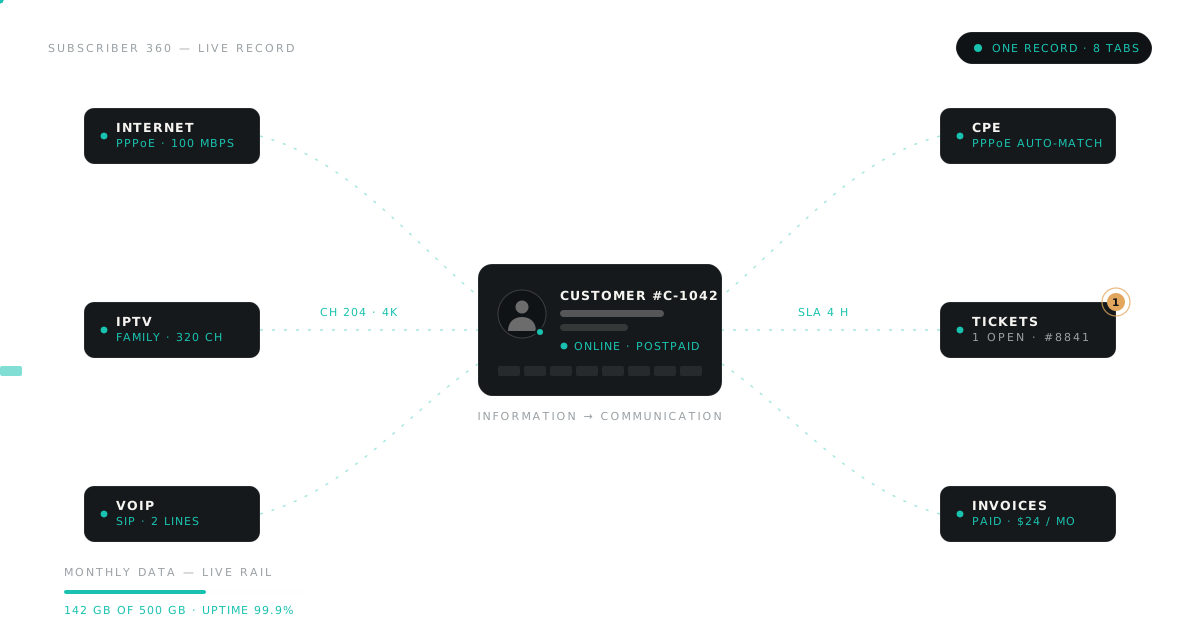
Services, billing, usage, CPE, VoIP, syslog and communication on a single profile — with live status beside it and a branded self-service portal one click away.
01 — The record
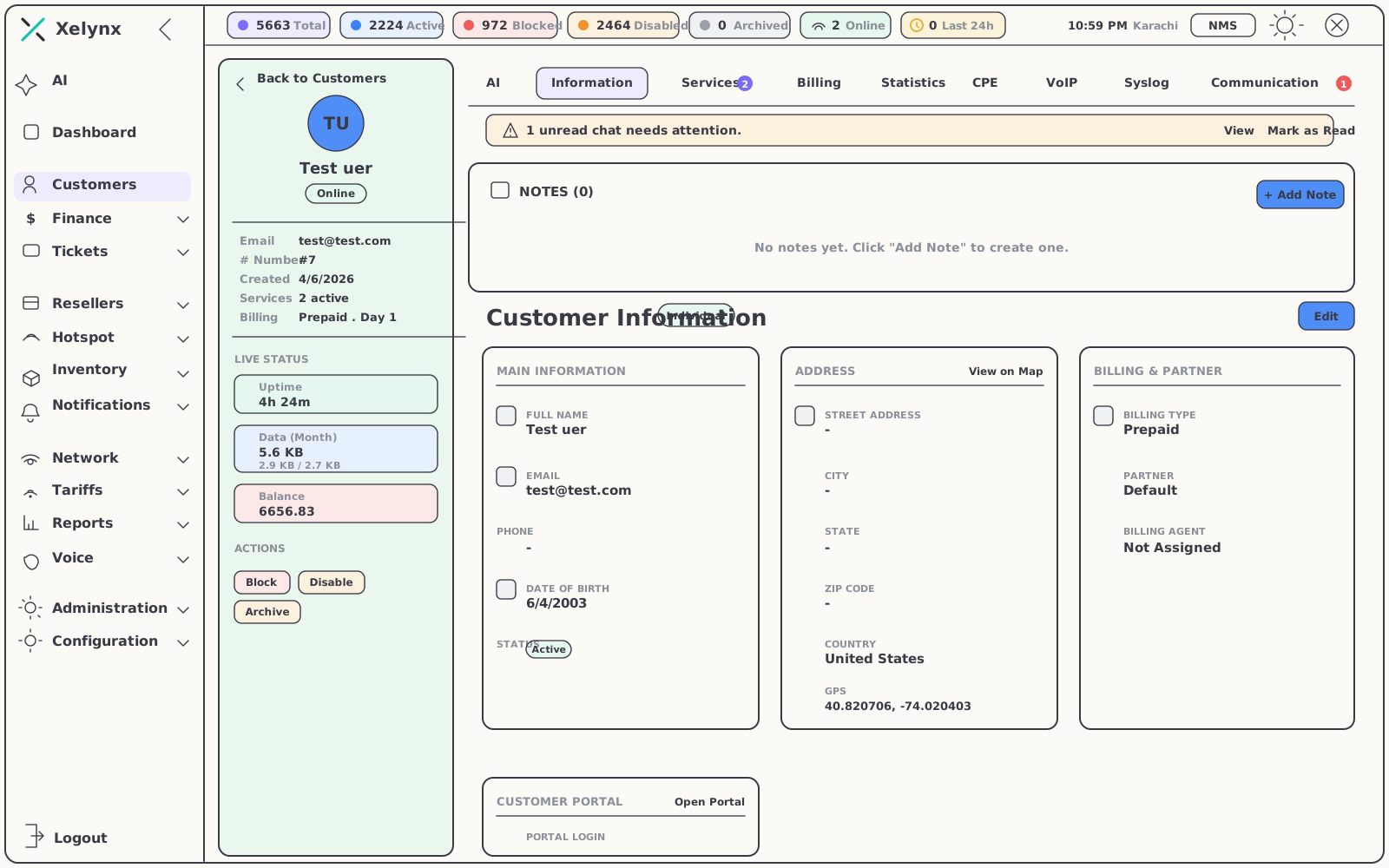
One profile that tells
the whole story.
Open a subscriber and everything is already there — connection, money, hardware, voice, logs and every conversation. No second system, no swivel-chair lookups.
Eight tabs, every angle
Information, Services, Billing, Statistics, CPE, VoIP, Syslog and Communication — tabbed into a single subscriber profile.
Live status rail
Real-time uptime, monthly data usage and account balance sit beside the profile, so the current state of the line is never a mystery.
GPS-pinned addresses
Every subscriber address carries GPS coordinates and an on-map location — ready for dispatch, site surveys and network planning.
02 — Day to day
Built for the work your desk actually does.
Finding people, settling money, reading the line — the three things a support seat does all day, each one screen deep.
The list view
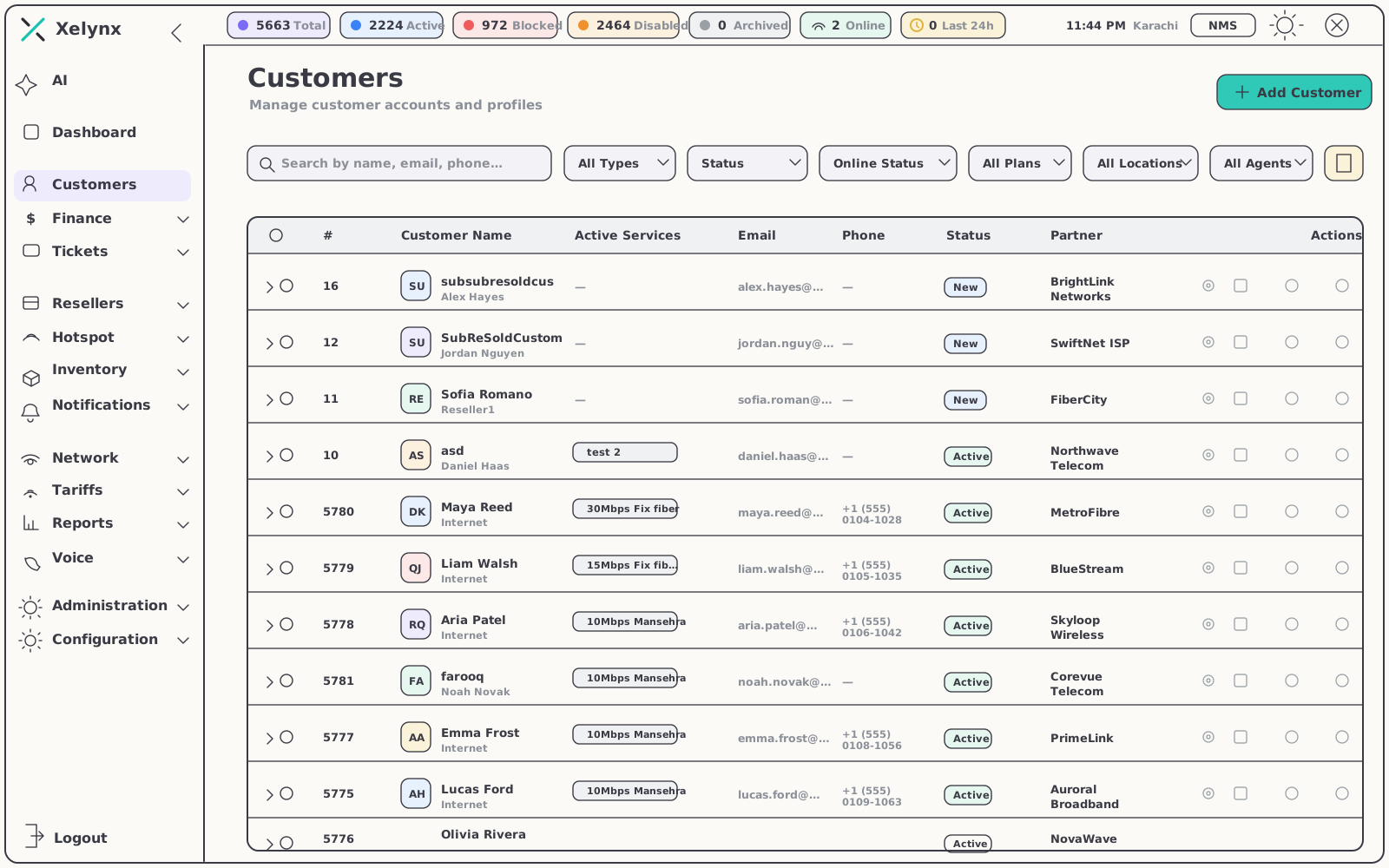
Find anyone in seconds.
The customer list is the front door to the whole base. Type a fragment, stack a few filters, and the person you need is on screen.
- Search by name, email or phone — across the entire subscriber base
- Filter by type, status, plan, location and agent — slice the base any way the job needs
- Online-state filter — see who is connected right now, and who is not
Billing in context
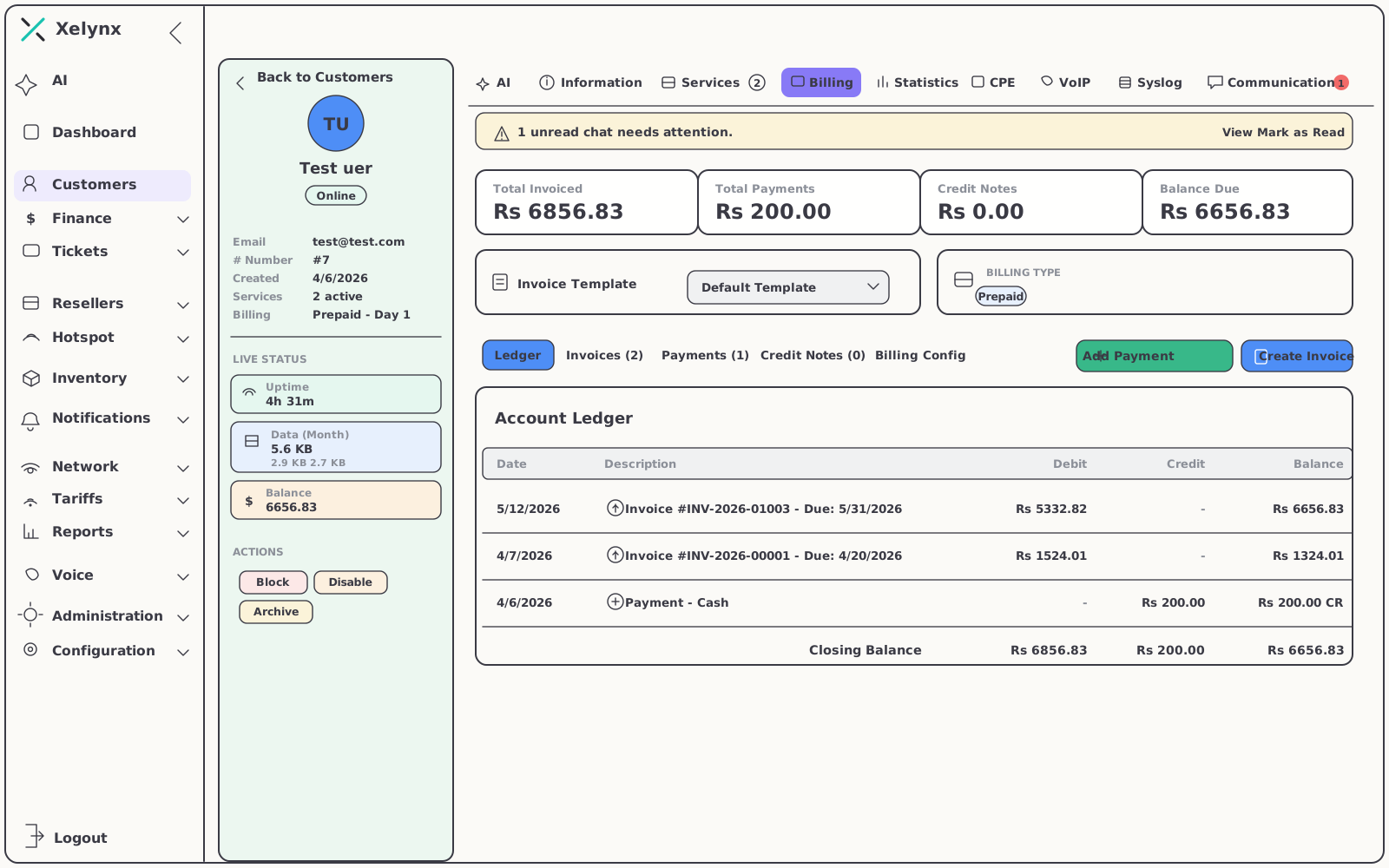
The money sits next to the customer.
The Billing tab keeps invoices, balance and billing type inside the record, so a payment question never means switching systems mid-call.
- Prepaid & postpaid — both billing types handled on the same profile
- Partner & billing-agent assignment — revenue attributed to the right channel
- Balance on the live rail — dues visible before the conversation starts
Usage statistics
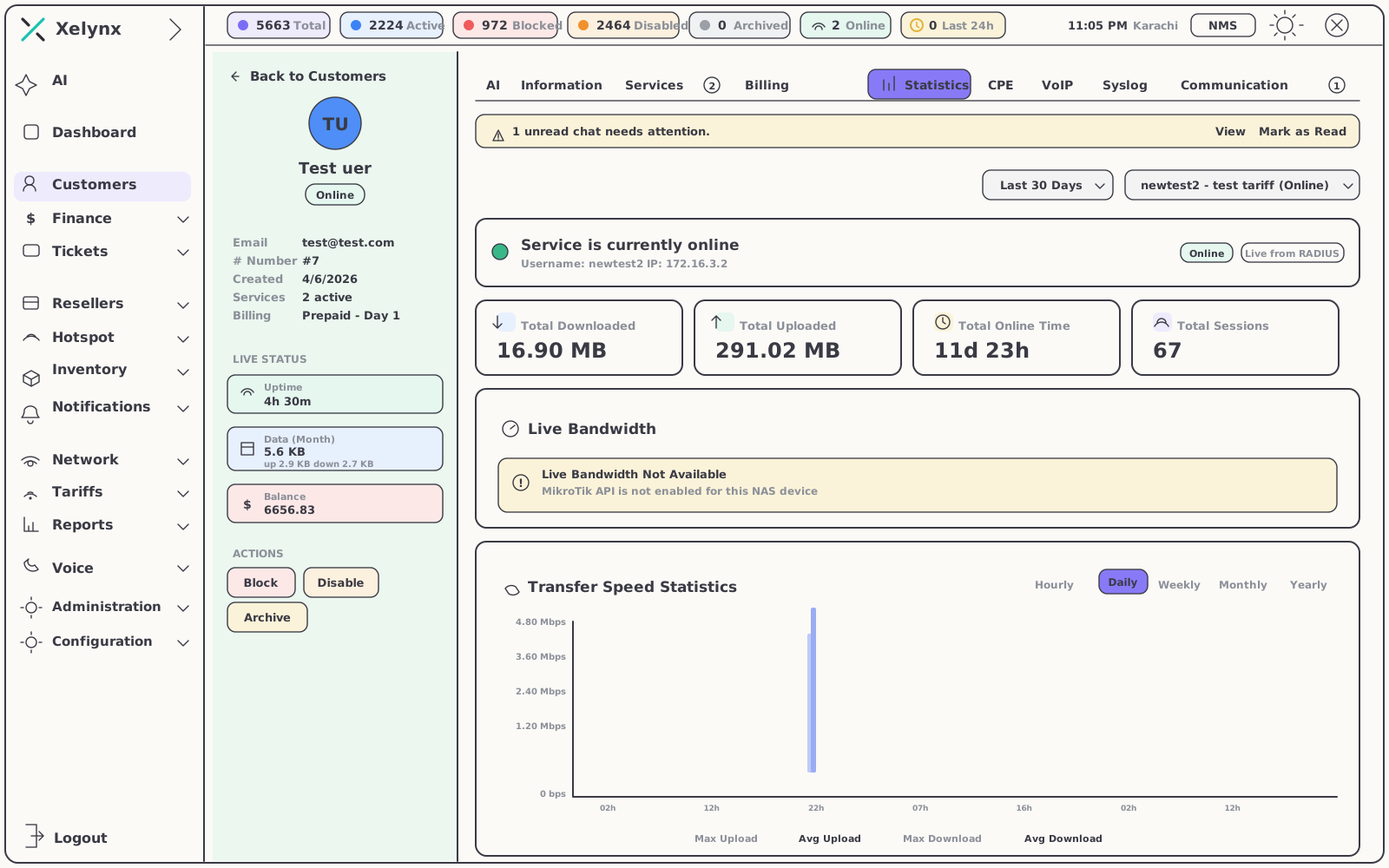
See how the line is really used.
Per-customer analytics turn raw counters into a clear picture of consumption and session health over time — and the actions you reach for most sit right there.
- Monthly data usage — on the live rail and charted in the Statistics tab
- Uptime visibility — session health without leaving the profile
- Block, Disable, Archive — one-click lifecycle actions where you need them
03 — Self-service
Self-service, down to
the WiFi channel.
A branded portal and mobile app give every subscriber their own window into the service — and every action they take lands in billing automatically, so your team manages exceptions instead of data entry.
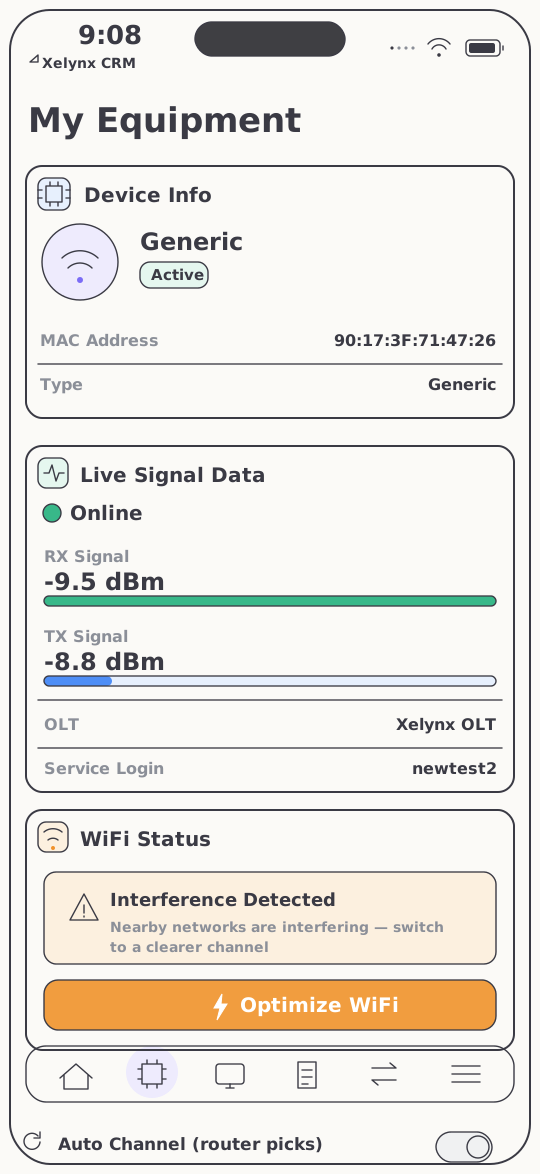
One tap to a cleaner channel.
In the customer app, subscribers see their own access point, its live signal and any interference from neighbouring networks. One tap on Optimize WiFi moves the radio to a clearer channel — no truck roll, no support call.
- Live signal — the subscriber's own access point, straight in the app
- Interference detection — nearby networks crowding the airwaves, spotted automatically
- One-tap Optimize WiFi — the radio moves itself to a clearer channel
04 — Documents
Invoices designed by dragging, not coding.
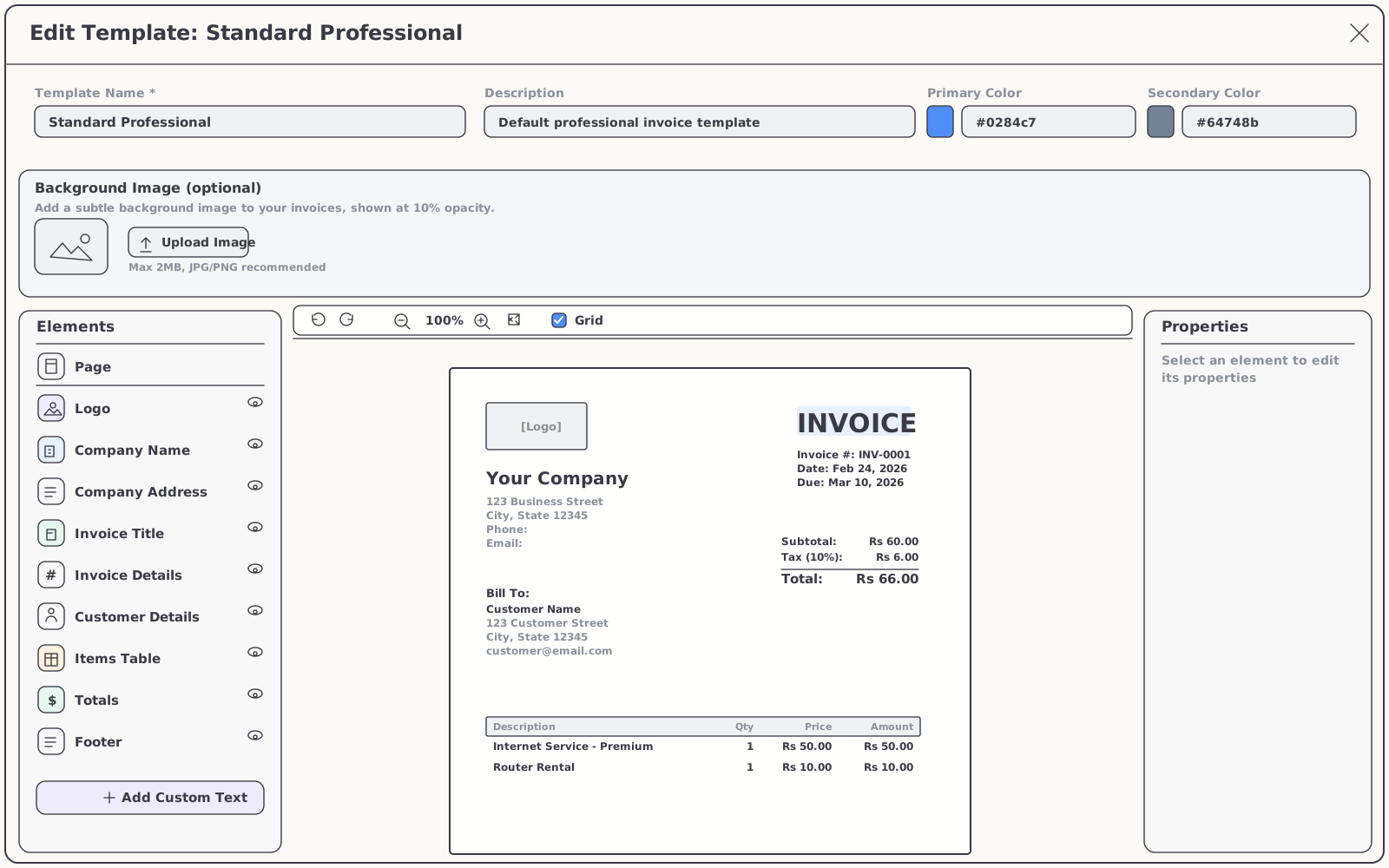
A visual editor builds the invoice your subscribers actually receive — logo, colours, watermark, the lot — with a live preview that updates as you arrange it.
- Drag-and-drop blocks — company and customer details, the line-items table and totals
- Your brand throughout — logo, colour palette and a watermark on every document
- Live preview — the finished invoice exactly as the subscriber will see it
05 — Plans & policy
Packages that enforce themselves.
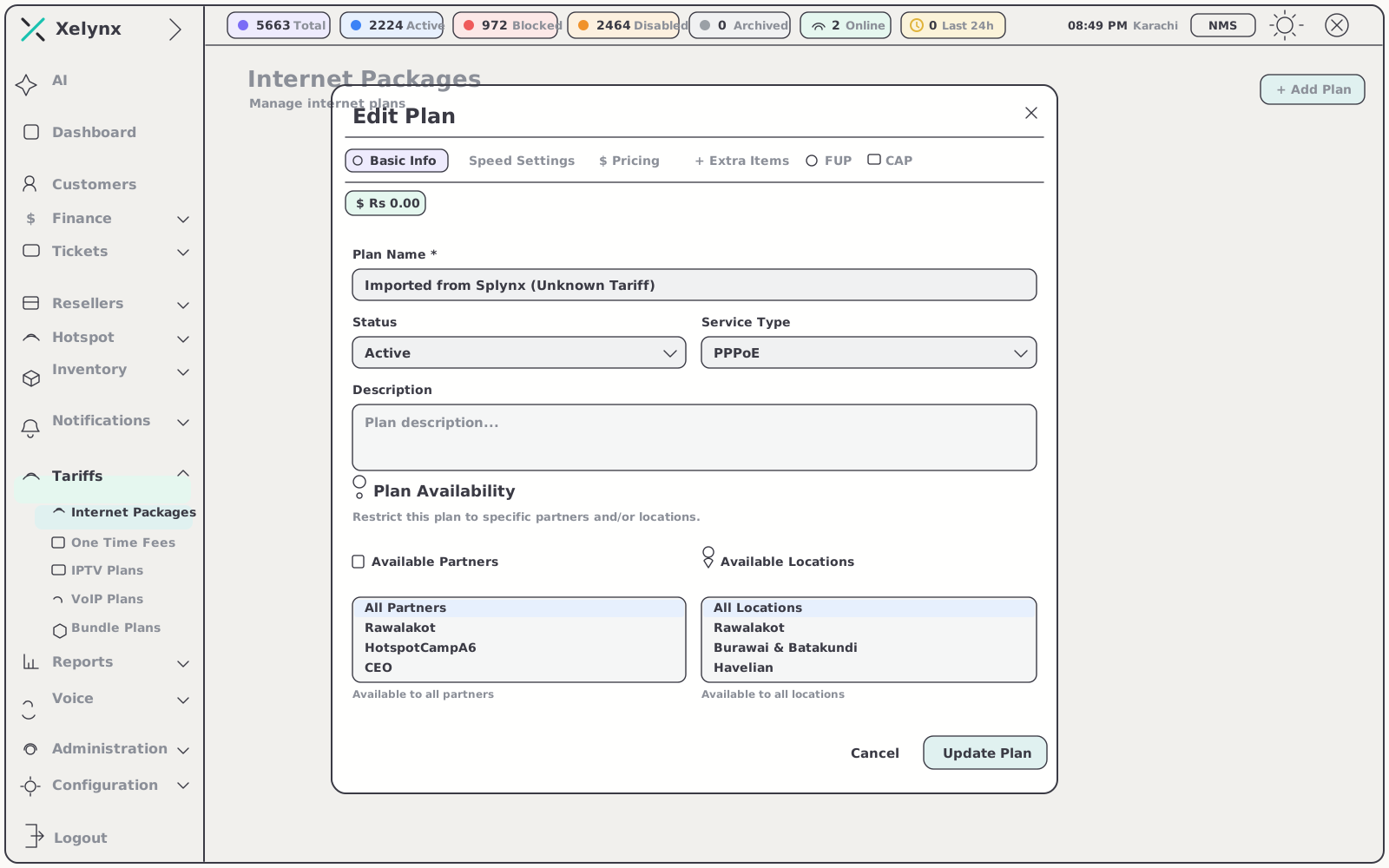
Fair-Usage Policy and data caps live inside the plan editor, so every internet package carries its own limits — applied automatically, reset predictably.
FUP & data CAP
Policy set where the package is defined.
No side scripts, no router-by-router rules. The limits belong to the plan, and the plan does the enforcing.
- Dedicated FUP and CAP tabs — per-package thresholds, right in the plan editor
- Post-FUP speed — the line throttles past the threshold instead of cutting the customer off
- Reset behaviour — full speed restored on the cycle you choose
| Policy | Set in | Behaviour |
|---|---|---|
| Fair-Usage Policy | Plan editor — FUP tab | Defines the usage threshold each internet package enforces on its own |
| Post-FUP speed | Plan editor — FUP tab | Throttles the line once the threshold is crossed — the customer stays online |
| Data CAP | Plan editor — CAP tab | Per-package data limit, defined on its own dedicated tab |
| Reset | Plan editor | Restores full speed on the cycle you choose, keeping caps fair and predictable |
Get started
Give every subscriber
a record worth opening.
Services, billing, usage and support in one profile. Free for 15 days, no card required.