Operations — Inventory
Every asset, item and CPE, accounted for.
Track stock, suppliers, purchase invoices and a full supplier ledger in one module — and let CPEs sync straight from the NMS, so what's on the network is always what's on the books.
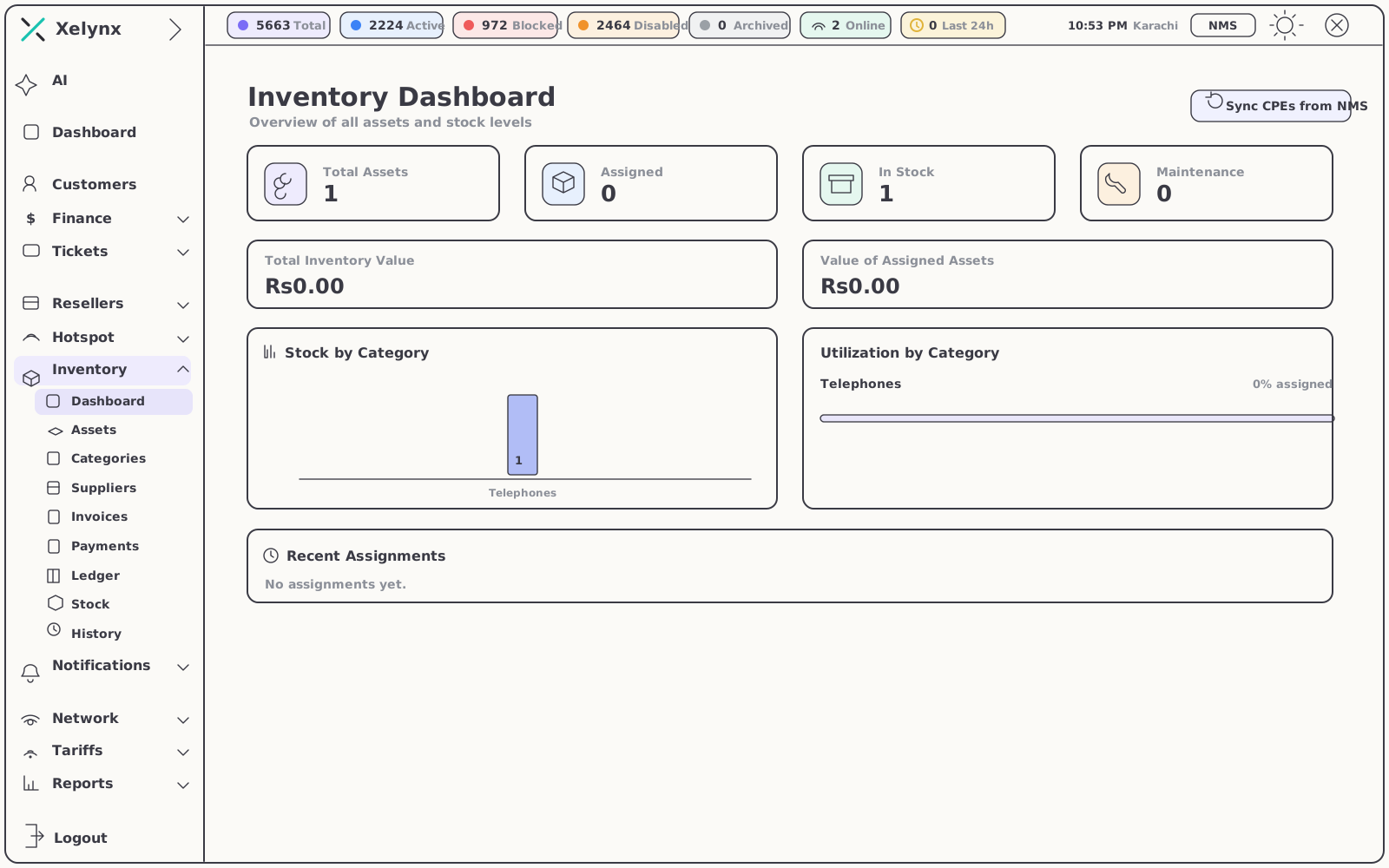
01 — The module
Six things, one register.
Inventory covers the physical side of running an ISP — what you bought, what you hold, what you owe and who has what.
02 — Assets & items
One register for every unit you own.
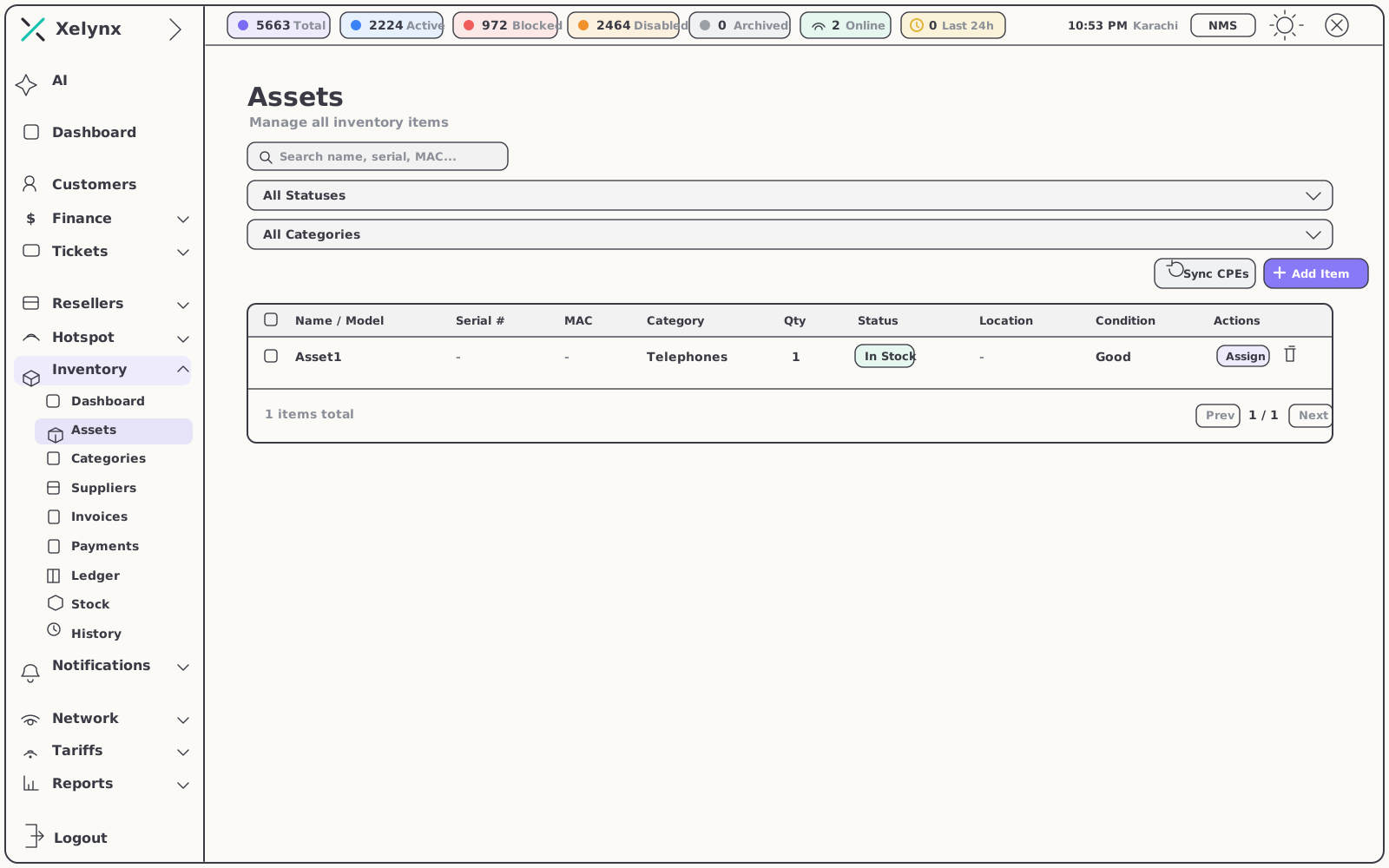
Each asset carries its own record — name and model, serial number, MAC, category, quantity, status, location and condition — in one searchable list. NMS-synced CPEs sit beside the items you add by hand, so there is never a second register to reconcile.
- Search by name, serial or MAC — and filter by status or category
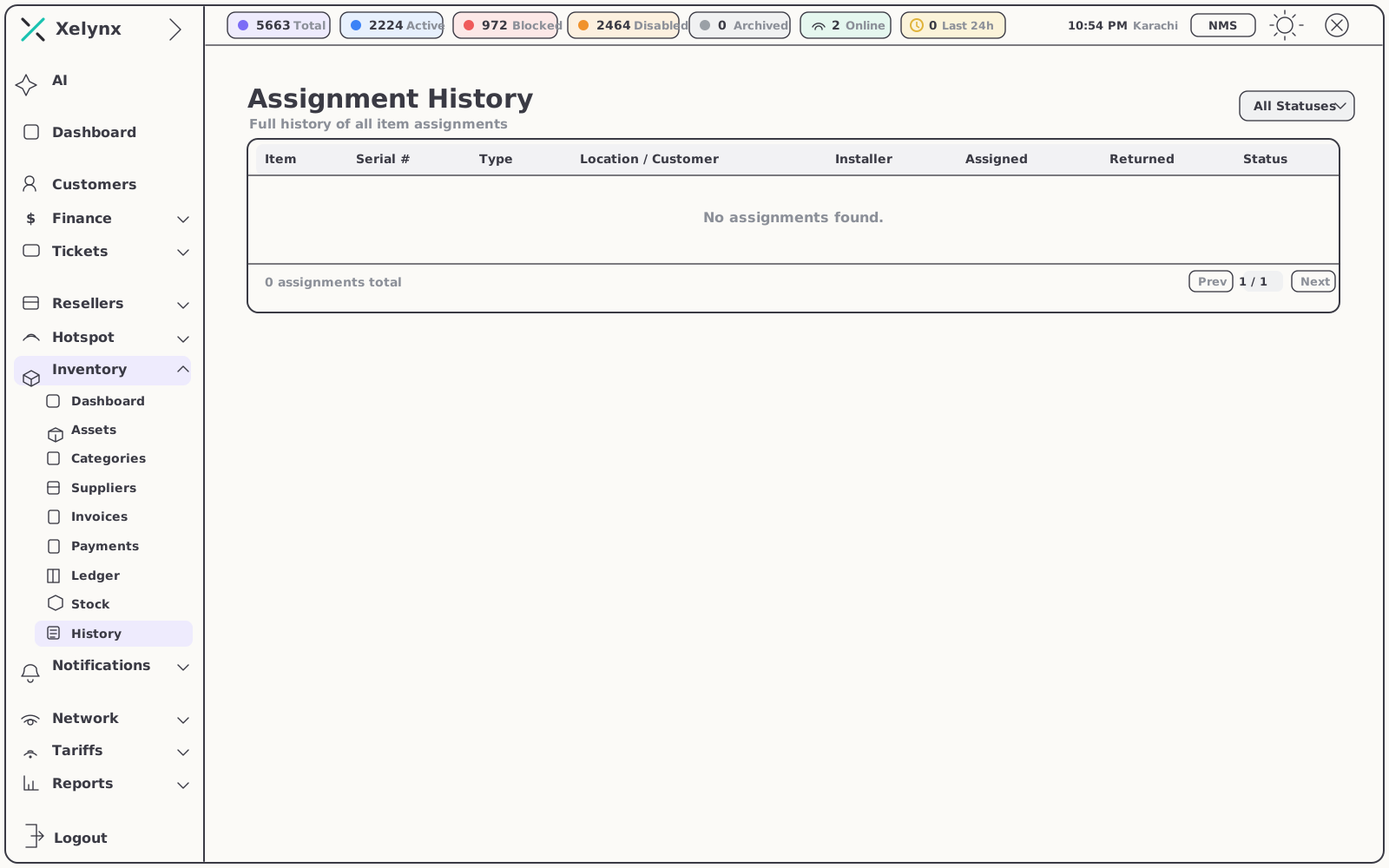
- Assignment history per asset shows exactly who or what it has been issued to
- Assign in one action straight from the asset row
03 — Stock levels
Reorder before installs stall.
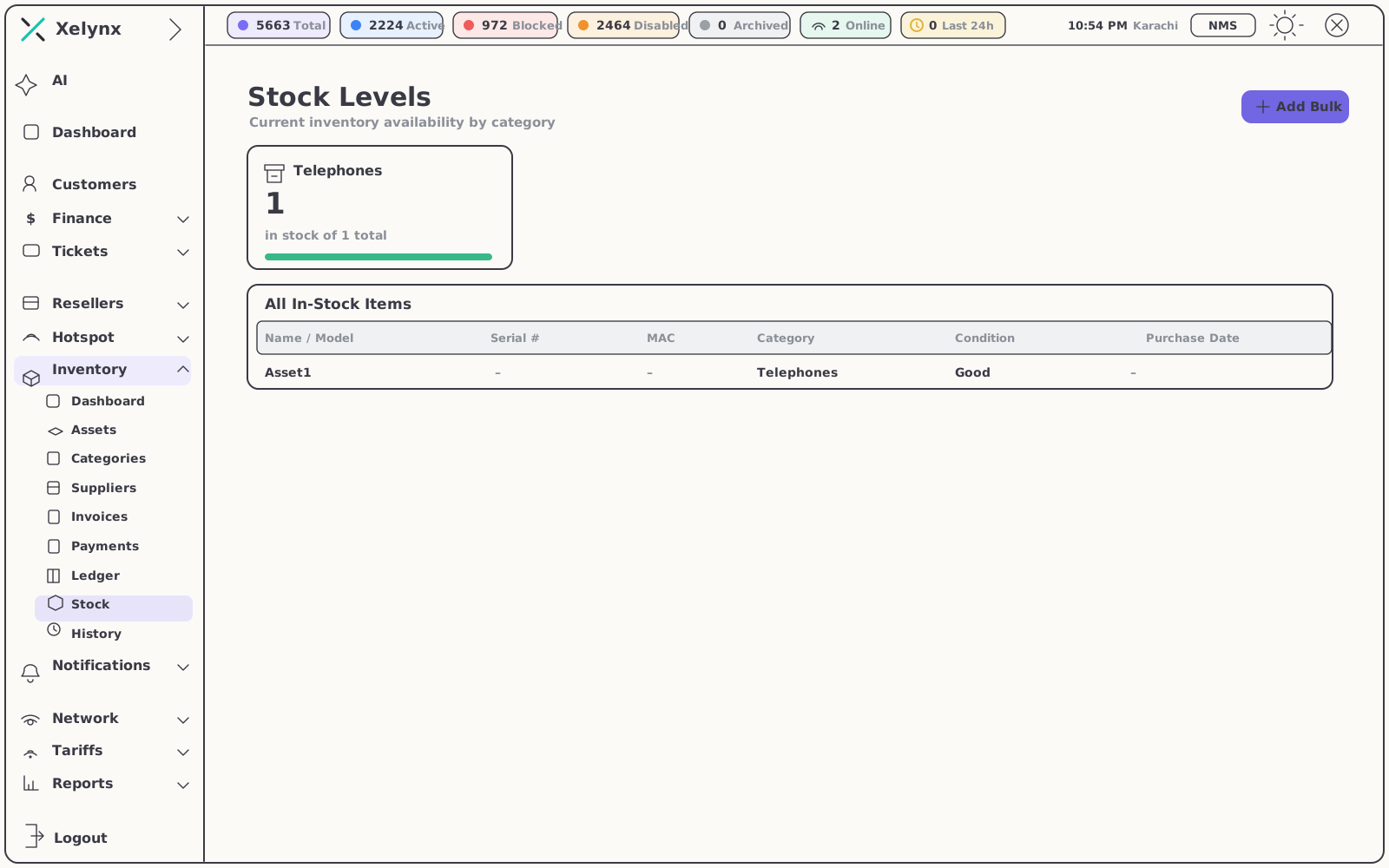
Stock is tracked per category as items move in and out — in stock against total, with the full in-stock list underneath. Low stock is visible at a glance, and every item ties back to its supplier, so reordering goes straight to the right vendor.
- Availability by category — in stock versus total, updated as kit moves
- Low-stock visibility so procurement stays ahead of demand
- Bulk intake for receiving a whole delivery in one pass
04 — Suppliers & finance
The money side of inventory.
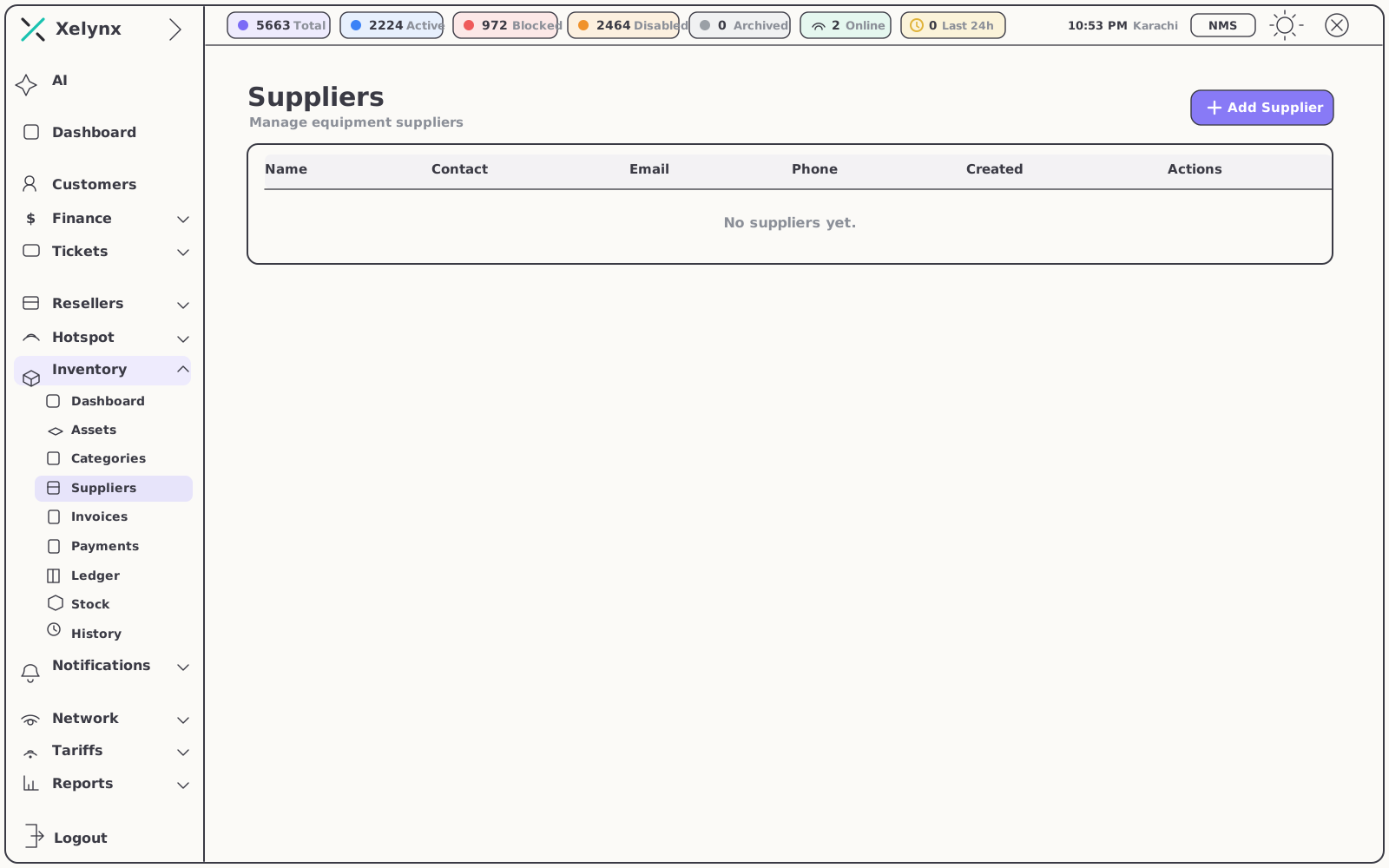
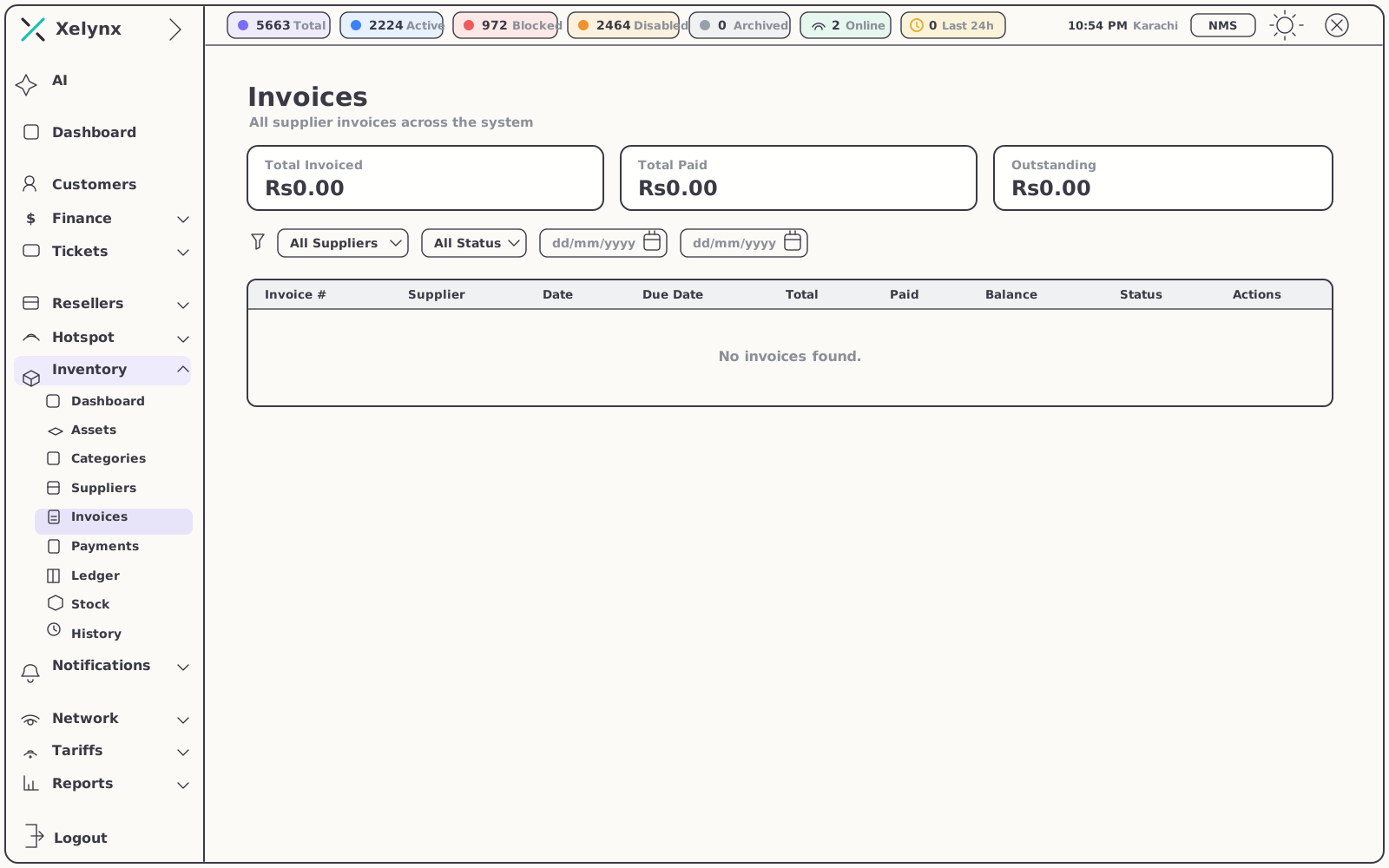
Purchase invoices, payments and a running ledger for every supplier — a clear audit trail from item received to invoice paid.
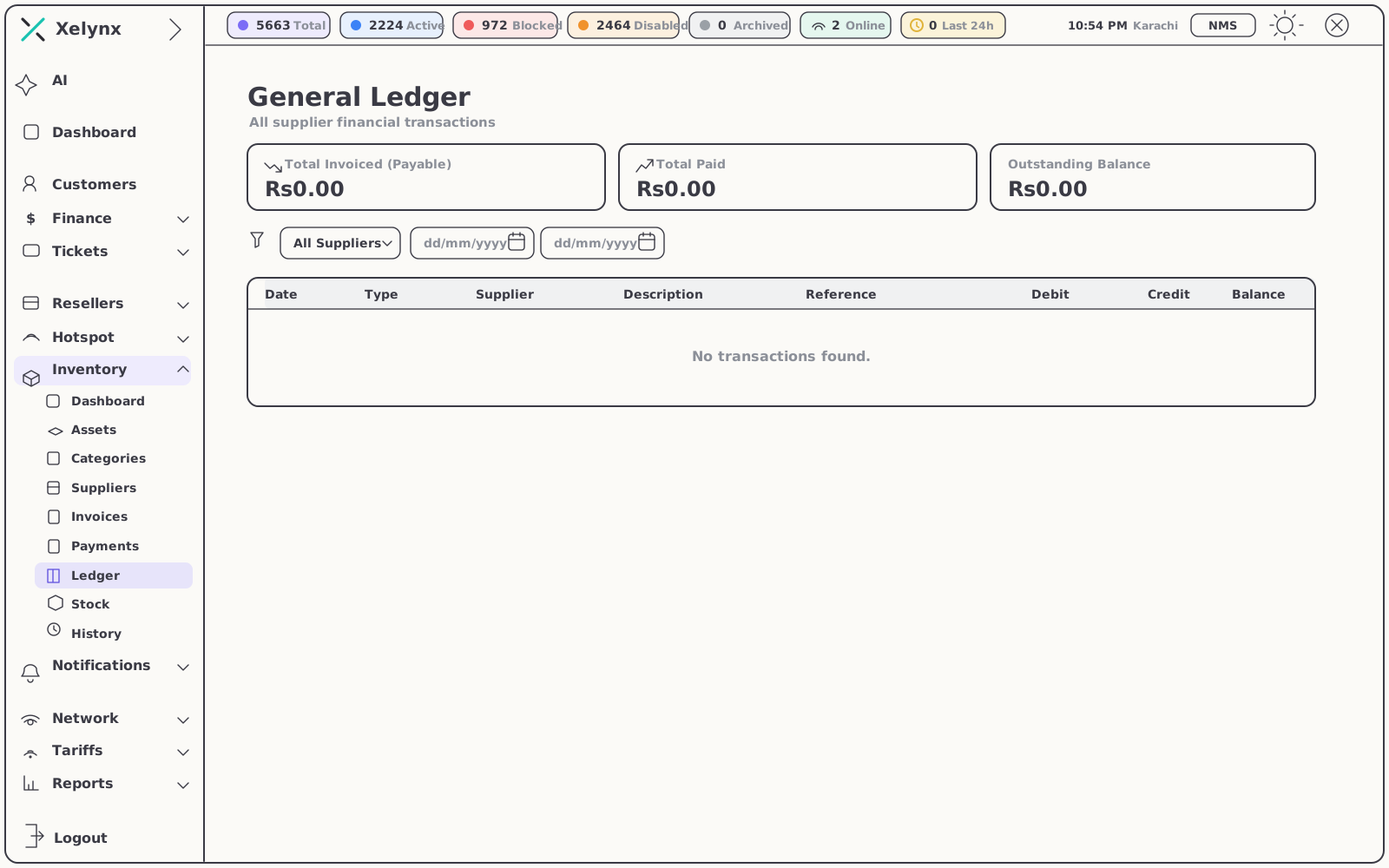
General ledger
Every supplier transaction, balanced.
The ledger keeps total invoiced, total paid and outstanding balance in view, with every debit and credit dated, referenced and tied to its supplier. Filter by vendor or date range and settle a statement in minutes.
- Total invoiced, paid and outstanding at the top of the page
- Per-transaction detail — date, type, supplier, reference, debit, credit, balance
- Balances and history per supplier, not just one global number
05 — Automation
An inventory that fills itself.
The slowest part of inventory is data entry. Xelynx removes it twice over — the network registers its own hardware, and AI reads your supplier paperwork.
ONU auto-discovery
When the NMS discovers an ONU on your OLTs, it is added to inventory automatically. The CPE register mirrors the live network with no manual onboarding — what's powered on in the field is what's in your asset list, and a one-click sync pulls CPEs in on demand.
AI invoice parsing
Upload a supplier invoice and AI reads it for you. Line items, quantities and prices are extracted and turned into inventory items automatically — no manual keying, no transcription errors, no backlog of paperwork.
06 — From shelf to subscriber
Who has what, never in doubt.
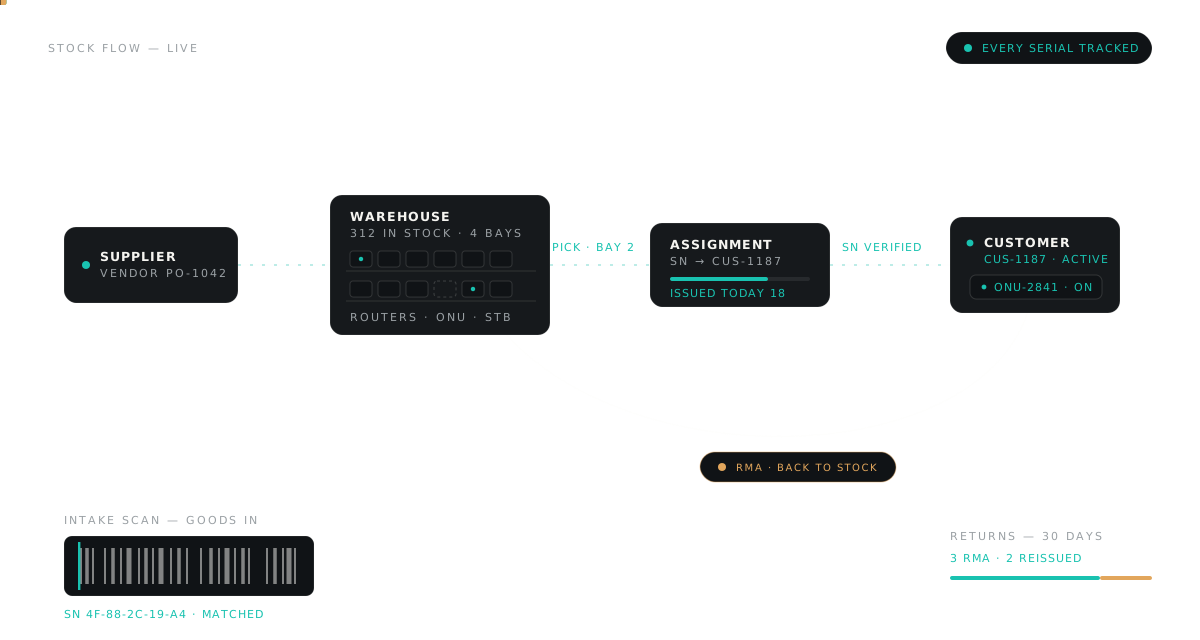
Issue any asset straight to a subscriber — routers, ONUs and set-top boxes stay tied to the customer holding them. When a unit comes back, the return-and-replace workflow pulls it into stock, issues the replacement and keeps the whole exchange on the record.
- Assign to a customer with a clean who-has-what record
- RMA & returns — faulty units pulled back into stock, tracked
- Tracked swaps — every replacement linked in the history
| Stage | What Xelynx records |
|---|---|
| Received | Purchase invoice, supplier and line items — parsed by AI if you upload the document |
| In stock | Quantity per category, condition, location and purchase date, with low stock surfaced |
| Assigned | The subscriber or site holding the unit, the installer, and the date it went out |
| Returned | The RMA, pulled back into stock with its return date on the assignment history |
| Replaced | The swap, linked to the original unit — the full exchange stays on file |
Get started
From purchase invoice
to the CPE on the wall.
Track all of it in one register from day one. Free for 15 days, no card required.