ONU settings & monitoring
Xelynx makes it easy to configure an ONU — its ports, VLANs, service ports, VoIP and IP settings — and to monitor crucial details like bandwidth, optical power, graphs and alarms. The ONU page is organized into tabs to control and monitor these settings; each tab is described below.
ONU overview
On this tab Xelynx gives an overview of your ONU.
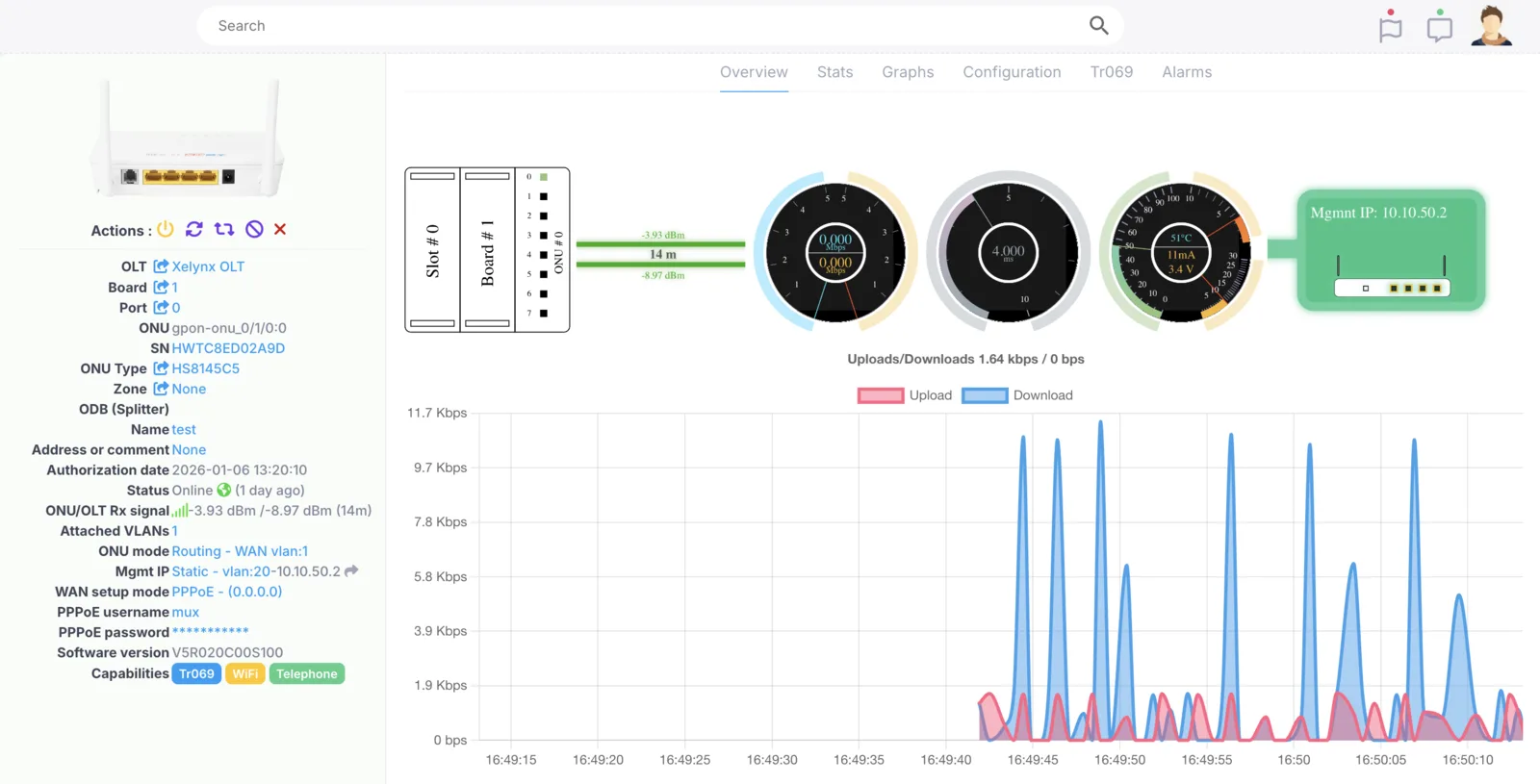
Information about each item on the page is given below.
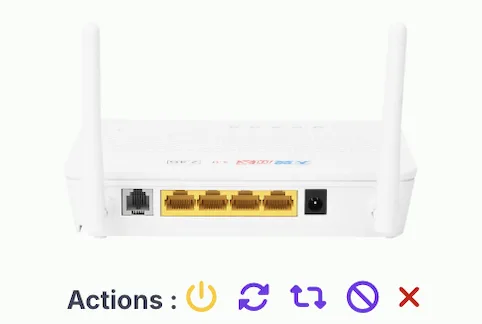
- Reboot ONU: reboot the ONU with a click of a button.
- Resync config: syncs the ONU configuration to the Xelynx configuration — DBA profile, line profile, service profile, speed profile, GEM ports and so on.
- Reset ONU: resets the ONU to default factory settings. Tr069 must be working for this to work.
- Delete ONU: deletes the ONU from Xelynx and the OLT. It will appear on the Autofind page if it is online.
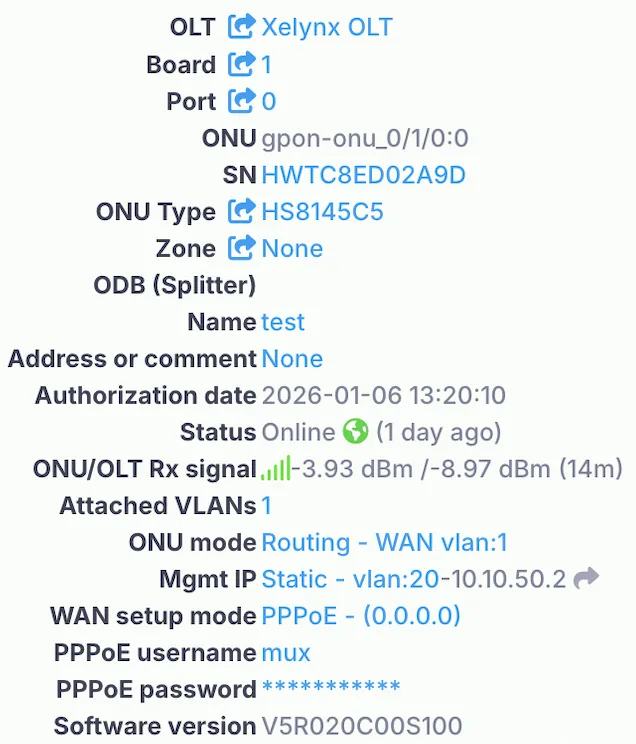
- OLT: the OLT this ONU is connected to. Click it to move the ONU to a different OLT; click the arrow icon to get a list of all ONUs on that OLT.
- Board: the OLT board this ONU is connected to. Click it to move the ONU to a different board of the OLT; click the arrow icon to get a list of all ONUs on that board.
- Port: the OLT PON port this ONU is connected to. Click it to move the ONU to a different PON port of the OLT; click the arrow icon to get a list of all ONUs on that PON port.
- ONU: the complete ONU path on the OLT, i.e. shelf, board, PON port, ONU number and ONU type.
- SN: the serial number of the ONU.
- ONU type: the ONU model/type. You can change it by clicking on the value and selecting a new one.
- Zone: the zone on the map this ONU falls in (create zones from the Maps page). You can also select the ODB here, and get or set the geo location of the ONU.
- Name: the name of the ONU. You can change it from here as well.
- Authorization date: the date and time this ONU was authorized on Xelynx.
- Status: the current live status of the device — if the ONU is offline, it tells you the reason.
- ONU mode: click to change the operating mode, WAN VLAN and WAN-side IP configuration. Some of the features require Tr069 to be working.
- WAN setup mode: click to change the operating mode, WAN VLAN and WAN-side IP configuration. Some of the features require Tr069 to be working.
- Mgmnt IP: select a Tr069 profile and give the ONU its management-side IP configuration and management VLAN.
- Software version: the software version of the ONU.

- Tr069: tells you if the device is connected on Tr069.
- WiFi: tells you if the device supports WiFi.
- Telephone: tells you if the device supports VoIP.
- CATV: tells you if the device supports CATV.
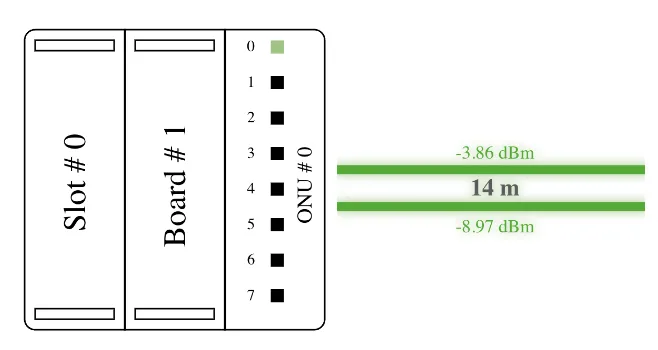
- Port details: the board, PON port and ONU number on the OLT this ONU is connected on.
- TX power: the TX power of the ONU; the colour shows whether it is good or not.
- RX power: the RX power of the ONU; the colour shows whether it is good or not.
- Distance: the actual distance of the ONU from the OLT.
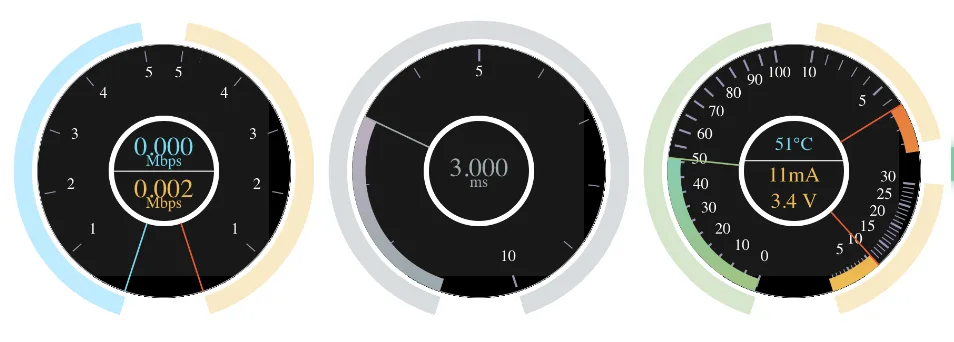
- Speed: the live upload and download speed utilized on the ONU.
- Latency: the live latency of the ONU from the OLT.
- Power/Temperature: the live current, voltage and temperature of the ONU.
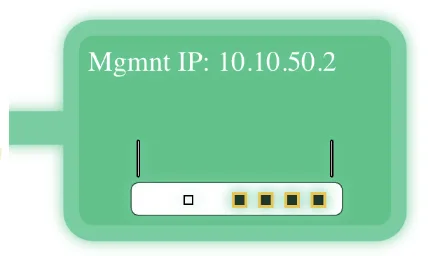
- Graphical view of ONU: a graphical representation of the ONU with all details and its management IP.
- Eth ports: the number of Ethernet ports on the ONU, their connection status and the speeds they are connected at.
- WiFi: shows if WiFi is supported.
- VoIP: shows if VoIP is supported.
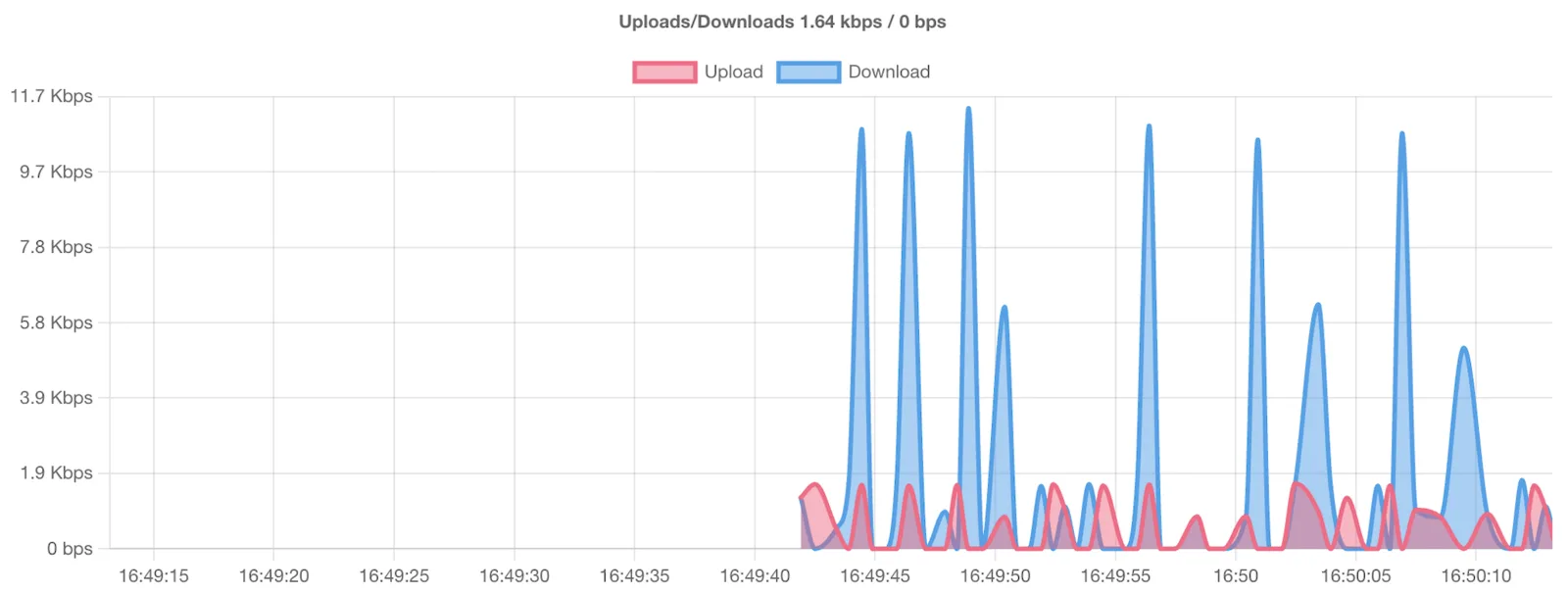
Live graph: displays a live graph of upload and download speeds.
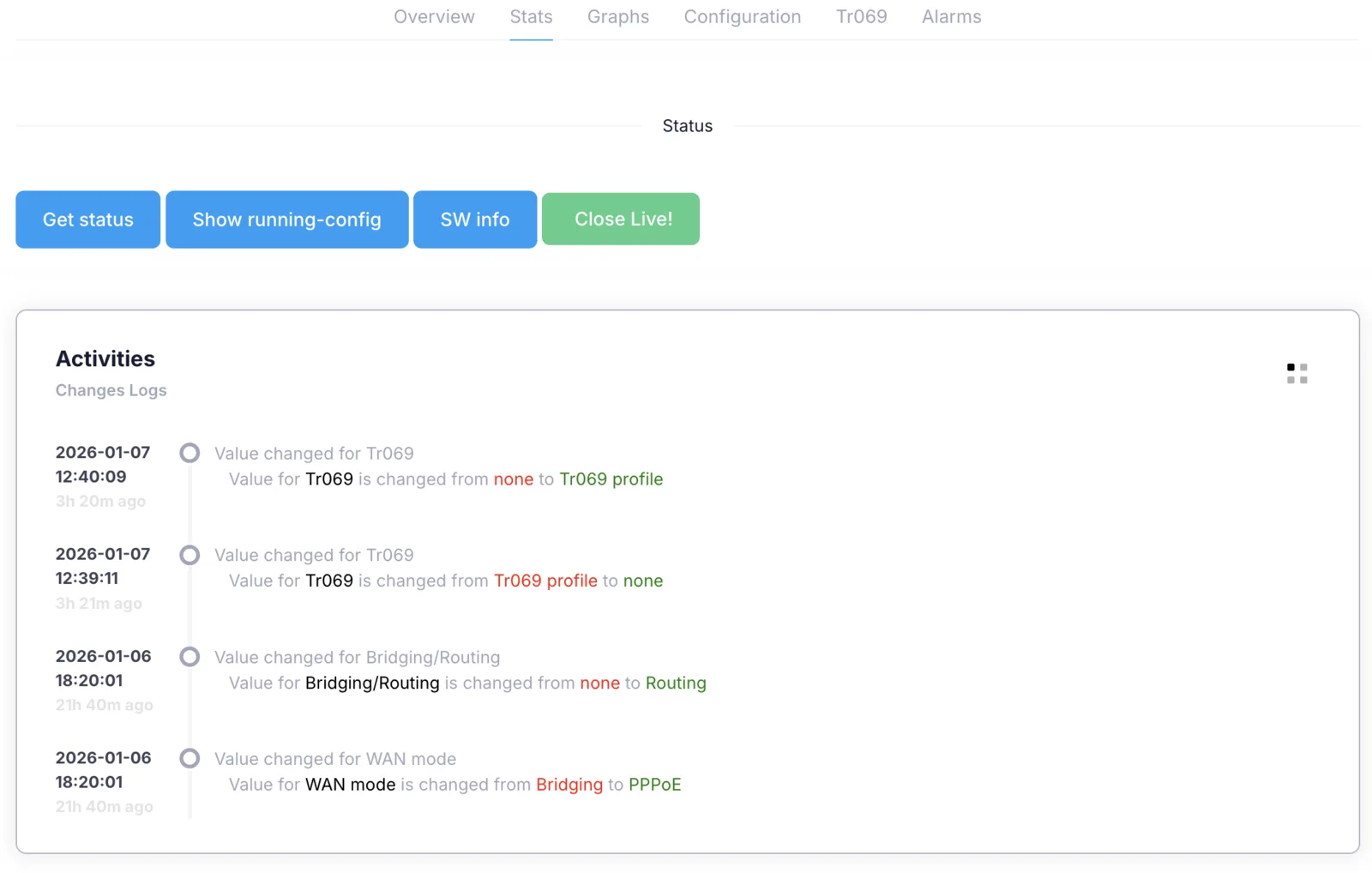
Stats and logs
On this tab Xelynx shows the log, and you can get various details about this ONU from the OLT.
Graphs
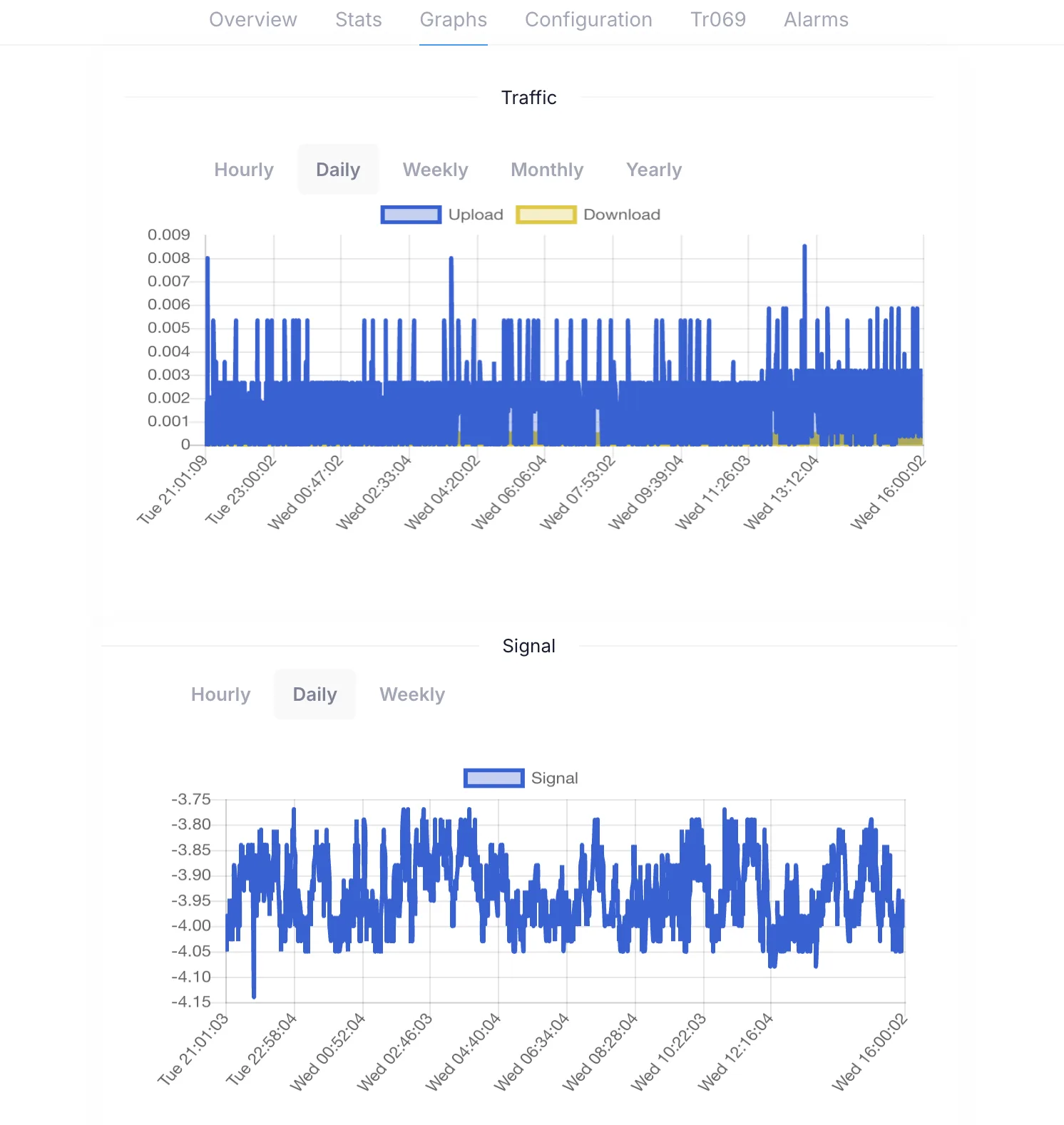
On this tab Xelynx shows the bandwidth and optical signal power of the ONU.
Configuration
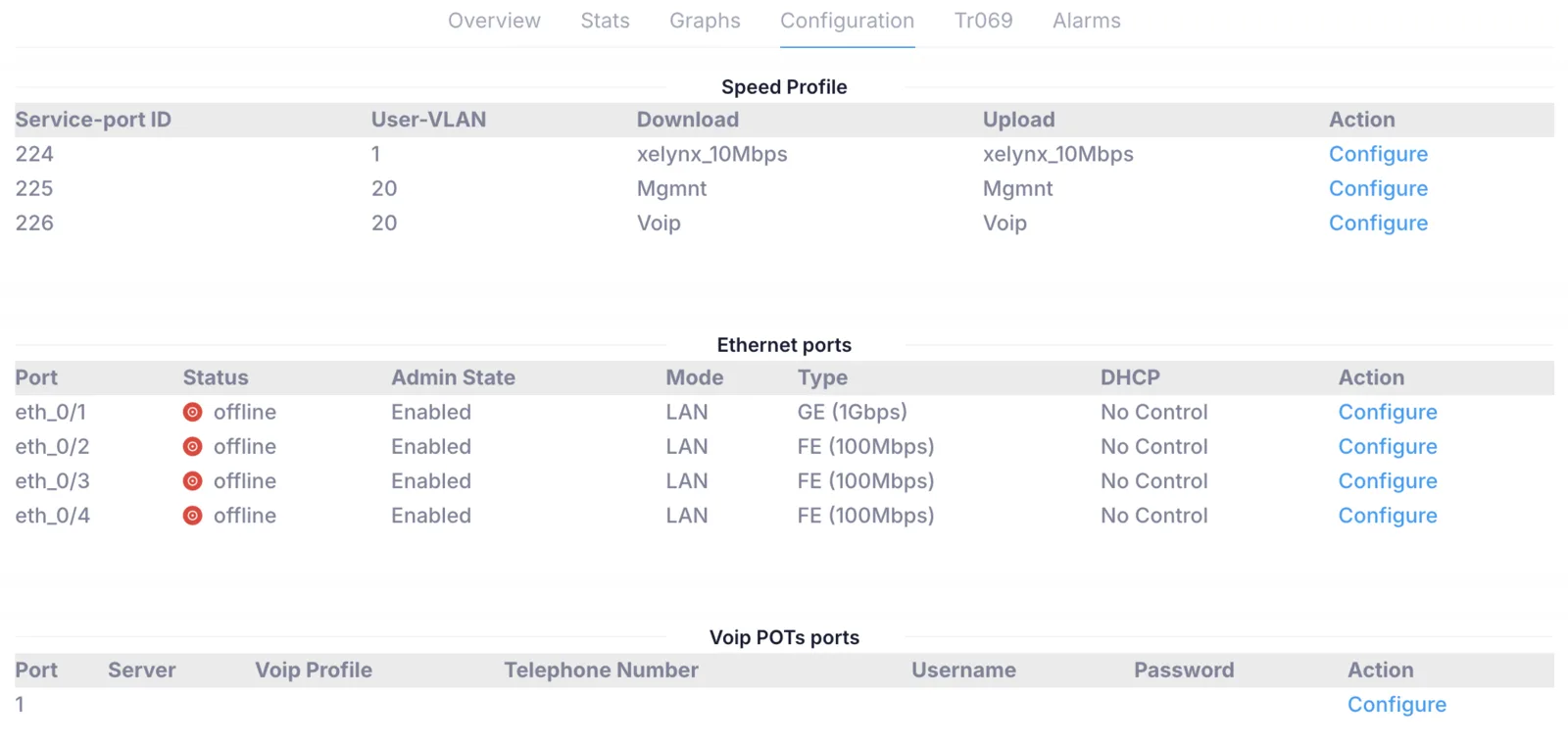
On this tab you can configure service-port VLANs, speed profiles, access modes for the ONU's Ethernet ports, and VoIP POTS settings.
Tr069
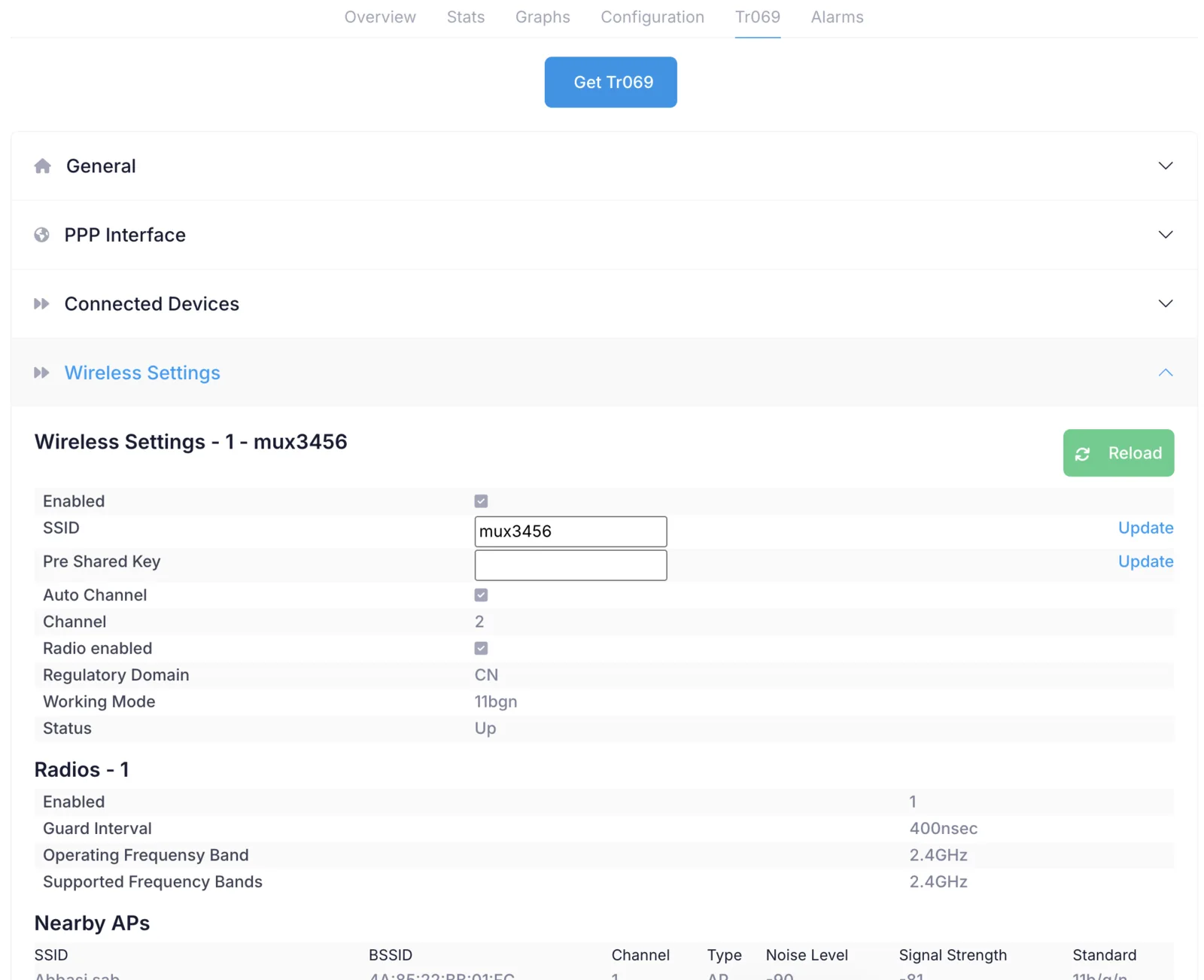
On this tab you can get all the ONU's details from Tr069. You can get and set various values, and see the list of devices connected on the ONU's LAN or WiFi, nearby APs, signal strengths, logs and more.
Alarms
Xelynx shows all the alarms raised on the OLT for this ONU.